Here is a quick guide on how to login and configure our New Control Panel portal.ozhosting.com for you to gain access.
There are two steps to complete the login process.
- Resetting your Account Password.
- Configuring MFA or Two Factor Authentication.
1. Resetting Password
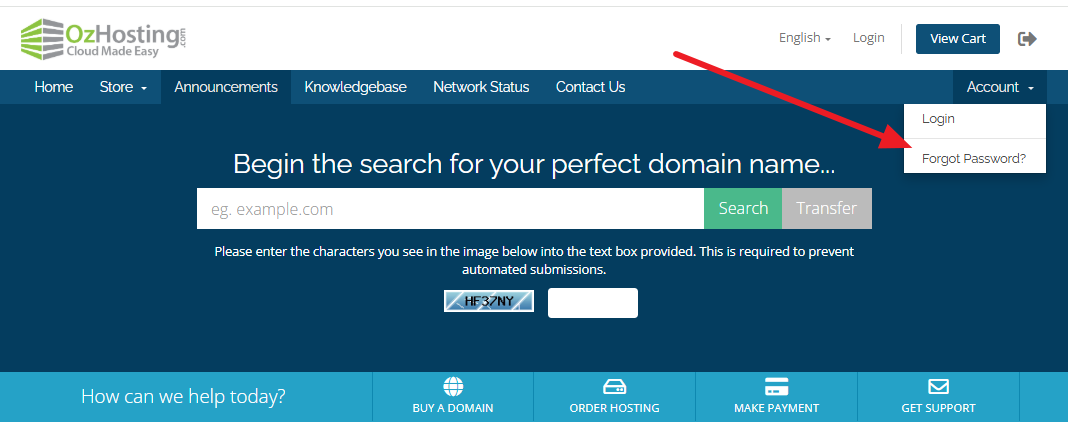
1.0 Please visit portal.ozhosting.com and click Accounts Dropdown and choose Forgot Password? afterwards enter your email address that we use to send you the initial email or if not sure, ask our support team for your login username.
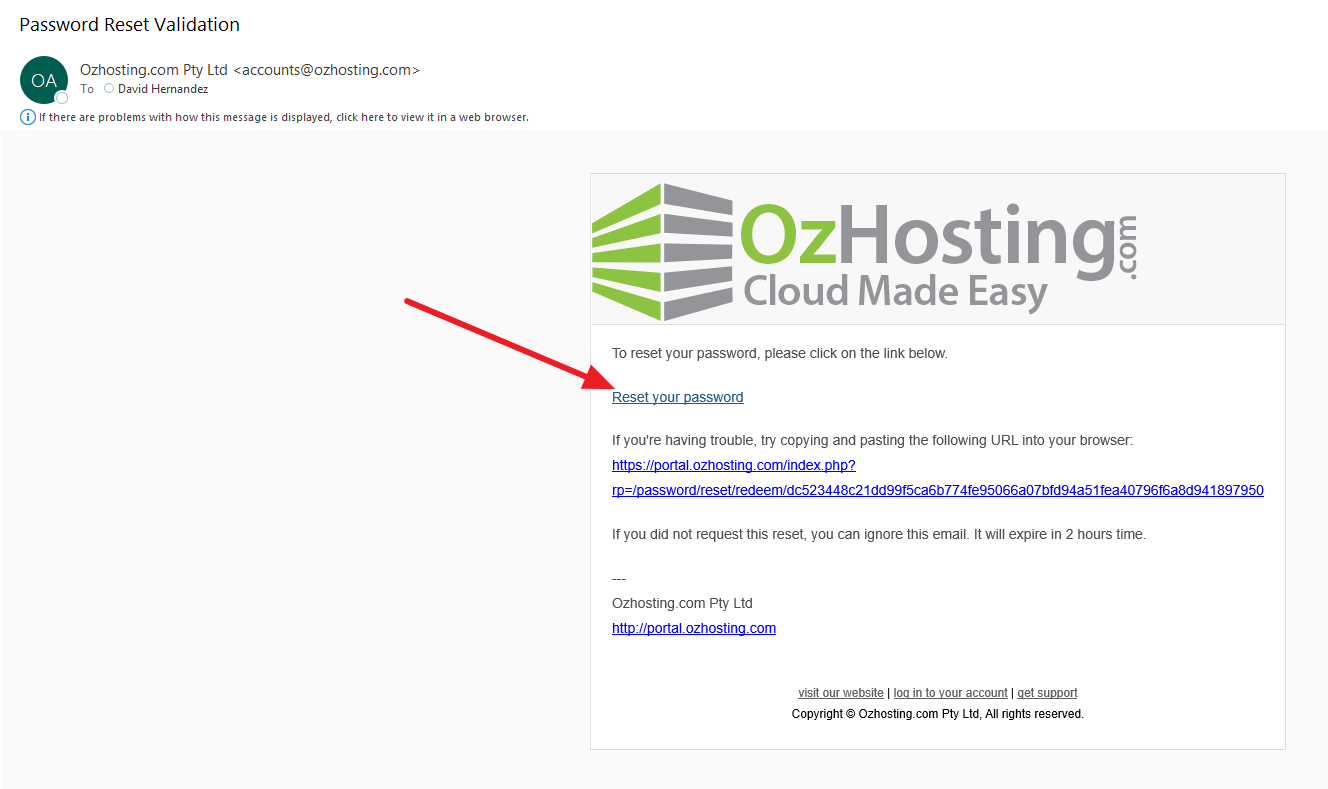
1.1. Password reset email looks like this and click the "Reset your password link"
1.2. After clicking the link, you will be redirected to Enter your New Password and click Save Changes Button.
Tips for creating a good password "Tips for a good password, Use both upper and lowercase characters, Include at least one symbol (# $ ! % & etc...)"
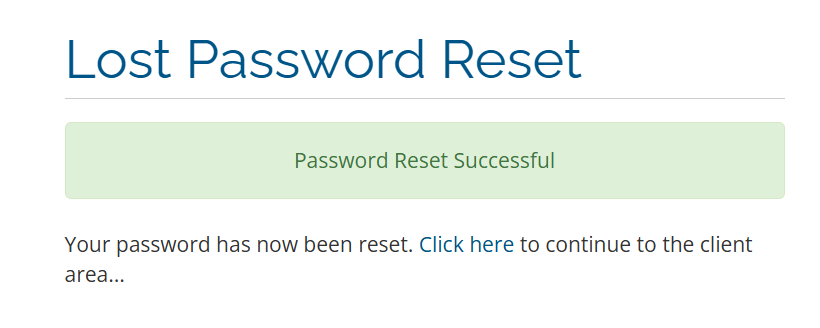
1.3. You will be logged in automatically after you reset it successfully. You need to logout for you to configure the Two Factor Authentication which is a requirements.
2. Configuring MFA or Two-Factor Authentication
1. If you are still login after the change password, please logout first and visit portal.ozhosting.com on a website browser and click log in with your newly updated password.
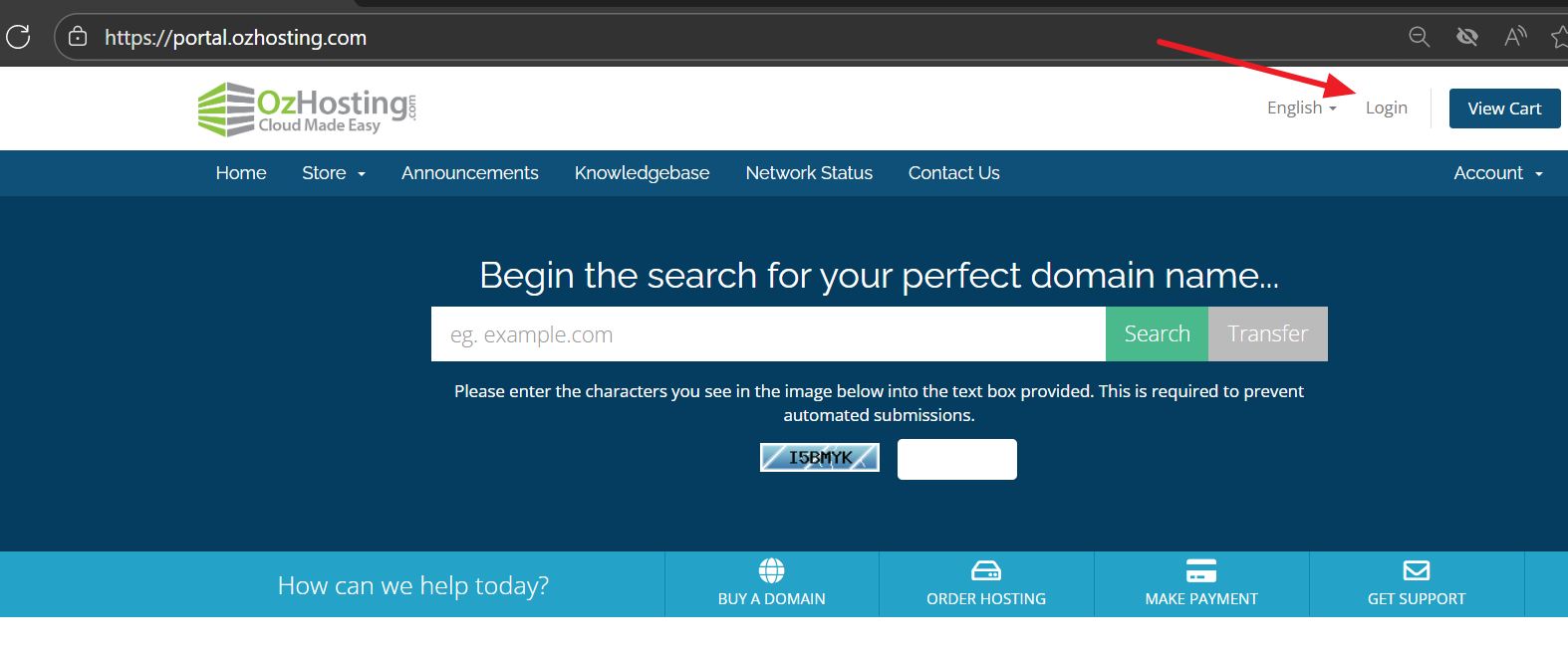
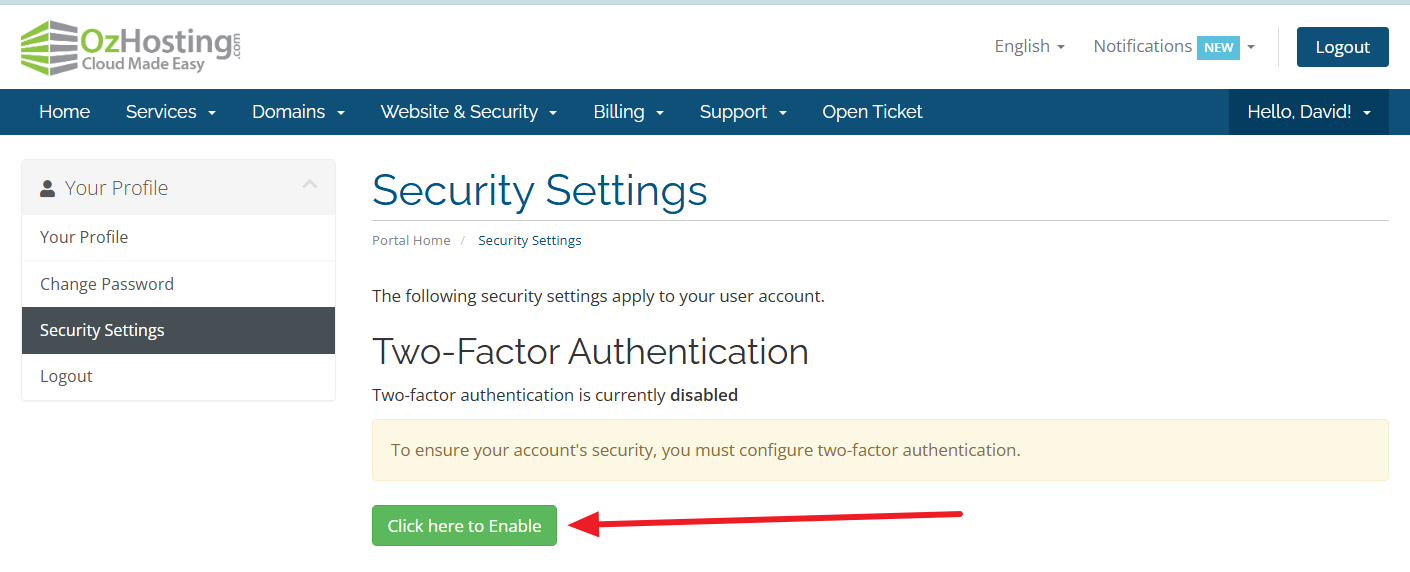
2. Click the Click here to "Enable green" button.
2.1 Click "Get Started" blue button using Time Based Tokens.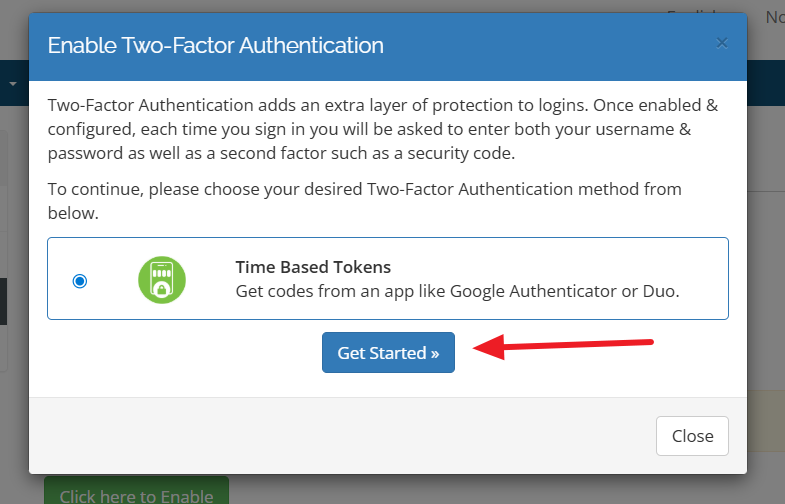
2.2 It will now provide you a QR code to scan but before that, you need to download and install a Google Authenticator APP or any authenticator app of your choosing on your mobile device and open that to scan the QR code.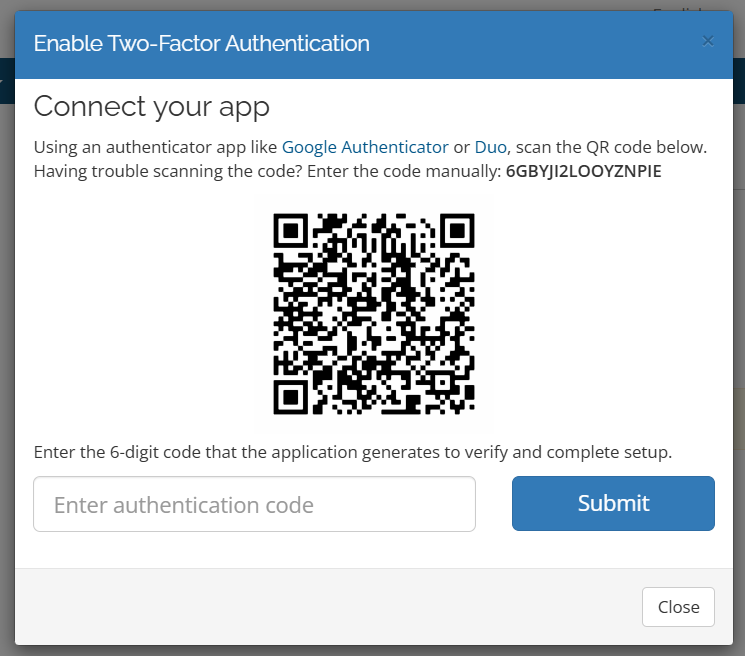
2.3 Once you scan it with your authenticator, you will see an entry with 6 digit code which you need to enter via Enter 6-digit code and click Submit.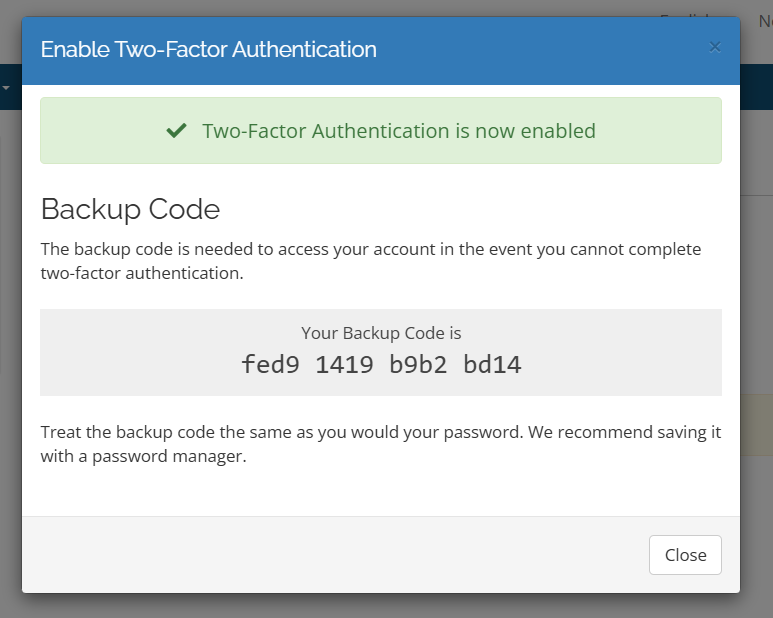
Important: Please save your backup code.